Microsoft Access Services
MS Access Invoice Payment Tracker Tool
Streamline Invoicing, Record Payments, and Stay on Top of Overdue Accounts - All from Microsoft Access
Running a service-based business or working as a freelancer comes with one universal truth: getting paid on time matters. Yet many small businesses still struggle with inefficient invoicing processes, missed reminders, and manual payment tracking. That’s where the MS Access Invoice Payment Tracker Tool steps in to simplify the entire billing and collection process.
Designed for professionals who need control and clarity, this tool helps you manage client billing, track partial or full payments, monitor aging reports, and even send automated email reminders via Outlook. And because it's built in Microsoft Access, you get the flexibility and security of a local system-no cloud subscription required.
What Is the Invoice & Payment Tracker Tool?
The MS Access Invoice Payment Tracker Tool is a lightweight, powerful application designed to automate your billing workflow from start to finish. It’s ideal for freelancers, consultants, service providers, and small firms that need:
• A structured way to issue professional invoices
Quickly create itemized, tax-compliant invoices with automatic numbering and due dates.
• A simple method to record and track payments
Log partial or full payments and instantly update outstanding balances.
• Built-in overdue tracking and client summaries
Monitor aging invoices by date range and get a clear view of each client’s billing history.
• Reporting tools to analyze billing trends and tax summaries
View monthly revenue patterns, tax totals, and client-wise performance-all exportable to Excel or PDF.
• Personalized settings for invoice formatting and tax preferences
Customize invoice prefixes, tax percentages, payment terms, and branding to match your business identity
• Multi-role access control to manage permissions securely
Assign roles like Admin, Accountant, or Viewer to control access to financial data and settings.
All of this is delivered inside a single .accdb or .mdb file, depending on your setup-meaning your business operations remain fast, secure, and entirely in your hands.
Who Is This Tool Designed For?
This tool is a perfect fit for:
• Freelancers and consultants who bill clients monthly or per milestone
• Small service-based businesses needing simple invoicing without subscribing to expensive SaaS platforms
• Accountants or admin staff looking for a centralized billing system
• Business owners who want a complete overview of outstanding balances and overdue payments
If your business sends invoices and tracks payments manually today, this solution will immediately save time, reduce errors, and improve cash flow visibility.
Core Features & Workflow Breakdown
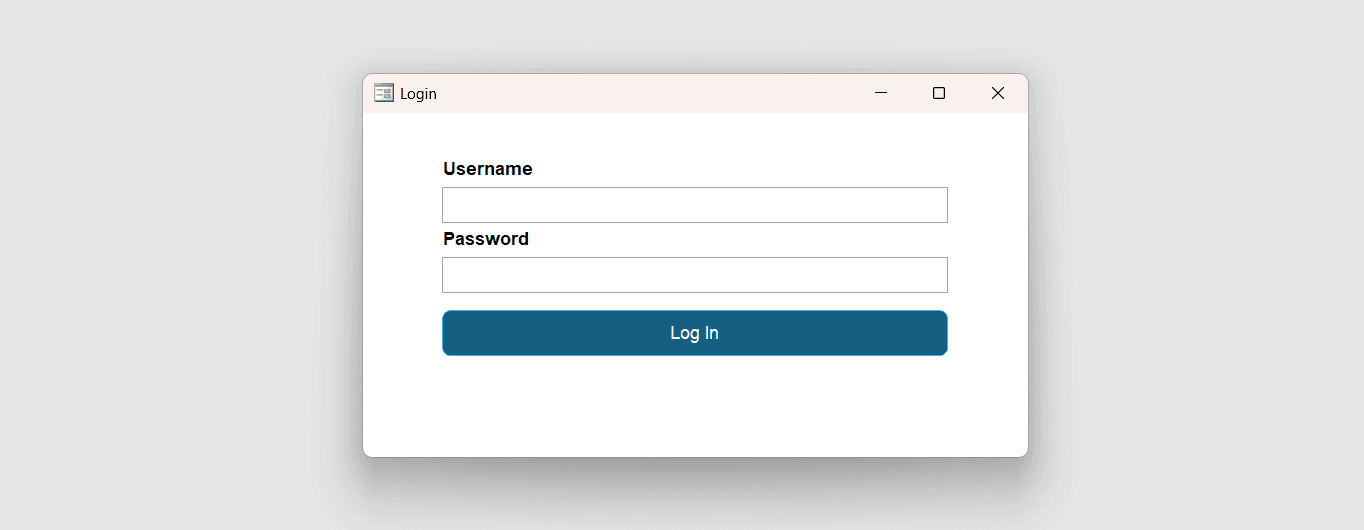
1. Role-Based Secure Login
Users log in via a password-protected screen, and access is controlled by role:
• Admin:
Full access, including settings and reports
• Accountant:
Can create/edit invoices, record payments, send reminders
• Viewer:
Can view reports and dashboards but cannot make edits
This ensures sensitive financial information stays protected while still allowing team collaboration.
2. Add and Manage Clients
In the Clients tab, you can add:
• Full client name
Identify the business or individual clearly for invoicing and communication purposes.
• Billing address
Store the full postal address used on invoices for accurate documentation and legal compliance.
• Phone number and email
Keep contact details handy for sending invoices, reminders, or follow-ups directly from the system.
• GST or tax ID (optional)
Include official tax identifiers if required for compliance or business-to-business billing.
Clients are linked to every invoice and payment, allowing for full traceability and history tracking.
3. Create Invoices in Seconds
The Invoices tab lets you:
• Select the client and invoice date
Choose from your client database and set the billing date to define the invoicing period.
• Add multiple items or services with quantity, rate, and tax
Include detailed line items such as services rendered, units provided, and applicable tax rates-ensuring accurate and itemized billing.
• Set due dates (auto-filled or editable)
The system automatically applies default payment terms, or you can adjust them manually based on client agreements
• Save and auto-generate PDF invoices
Instantly create a clean, branded invoice in PDF format, ready for download or print.
• Email invoices via Microsoft Outlook directly from Access
Skip extra steps-send invoices directly from within the tool using your Outlook email account.
Each invoice is assigned a unique number using customizable prefixes (e.g., INV-2025-001), giving your business a polished, professional look.
4. Record Payments (Full or Partial)
Track received payments from clients by:
• Selecting the relevant invoice
Link each payment directly to the associated invoice to keep records properly aligned.
• Entering amount, date, and method (Bank, UPI, Cash, etc.)
Document when and how the payment was received to maintain a detailed audit trail.
• Allowing for partial payments-the system automatically updates the outstanding balance
The system recalculates remaining balances in real time, accommodating partial or staged payments without manual tracking.
Payment entries are securely stored and linked to their corresponding invoices, ensuring transparency and auditability.
5. View Outstanding Balances & Aging Analysis
The tool includes a powerful Aging Report feature that categorizes unpaid invoices into:
• 0-30 days
Recently issued invoices that may not yet be due.
• 31-60 days
Approaching overdue status; ideal for gentle payment reminders
• 61-90 days
Increasing risk of non-payment-follow-up is strongly recommended.
• Over 90 days
Critically overdue invoices requiring immediate attention or escalation.
You can filter by date range and client, export reports to Excel, and identify which clients need follow-up based on how overdue they are. This feature is critical for improving cash flow and reducing unpaid debts.
6. Send Automated Payment Reminders
From the Reminders tab, click "Run Reminder Scan" to:
• Detect upcoming or overdue invoices
The tool scans your database and flags invoices nearing or past due based on due dates
• Automatically prepare personalized email messages using invoice number and due date
Each reminder includes key details like invoice number and due date-saving you time and ensuring consistency.
• Launch Outlook with the message ready-to-send to the client
With one click, the system opens Outlook with the reminder email preloaded and addressed.
Example email content: “Reminder: Invoice INV-2025-0012 is due on 25th July. Please make the payment at your earliest.”
You can automate this step via Access macros or use it manually as needed. It’s a professional and proactive way to stay ahead of late payments.
7. Reports & Visual Dashboards
Gain full financial visibility using the built-in dashboard and report modules:
• Client-Wise Invoice & Payment Summary
See total invoices issued, payments received, and outstanding amounts per client.
• Monthly Billing Trends to analyze revenue growth
Visualize your business’s income performance month-over-month.
• Outstanding Balance Lists to monitor liabilities
Quickly identify clients who owe money and how much they owe.
• Tax Summary Reports for easy accounting and filing
View totals for collected tax across invoices-helpful during tax season or financial audits.
Reports can be exported as Excel or PDF documents and are ready to share with internal teams or external accountants.
8. Custom Settings & Invoice Personalization
Admins can tailor the tool to your business:
• Define invoice prefixes (e.g., INV-2025-)
Customize how invoice numbers are generated to match your internal tracking or branding
• Set default due days (e.g., 15 or 30 days)
Establish standard payment terms for all new invoices, reducing repetitive entry.
• Configure default tax percentage
Set your default tax rate once and let the system apply it automatically to new invoices.
• Upload business name, logo, and contact info
Personalize your invoices and reports with your official branding for a professional touch.
See the Invoice Tracker in Action
Swipe or click through real screenshots of the Invoice Payment Tracker tool.
These settings are applied to all new invoices, ensuring brand consistency and reducing repetitive data entry.
Benefits of Using the MS Access Invoice Tracker Tool
Save Time & Reduce Errors
Automate billing, payment tracking, and reminders-without needing Excel formulas or external apps.
Stay Organized
View all invoices, clients, payments, and reports in one structured environment.
Improve Cash Flow
Use aging analysis and timely reminders to get paid faster and more consistently.
No Subscription Needed
Own your tool. No internet connection or monthly fees required. Just open in Access and go.
Ideal for Non-Technical Users
Simple interface with buttons and dropdowns. No coding required. If you know how to use Access, you’re already 90% trained.
How to Use the Tool (Step-by-Step)
1. Open the tool in MS Access
2. Log in using your assigned role credentials
3. Add new clients with contact and billing info
4. Create invoices and generate PDFs for sharing
5. Record payments as they come in-full or partial
6. Run reminder scans for late or upcoming payments
7. Export reports monthly for financial review
8. Adjust settings if you change tax rates or invoice formatting
FAQ
Frequently Asked Questions
Find answers to common questions about our services
Final Thoughts
For service businesses that value simplicity, control, and offline access, the MS Access Invoice Payment Tracker Tool is the ideal solution. It bridges the gap between spreadsheets and cloud-based accounting software, giving you structure without overhead.
From invoice creation to reminder emails, it supports your entire billing lifecycle in one seamless interface.